
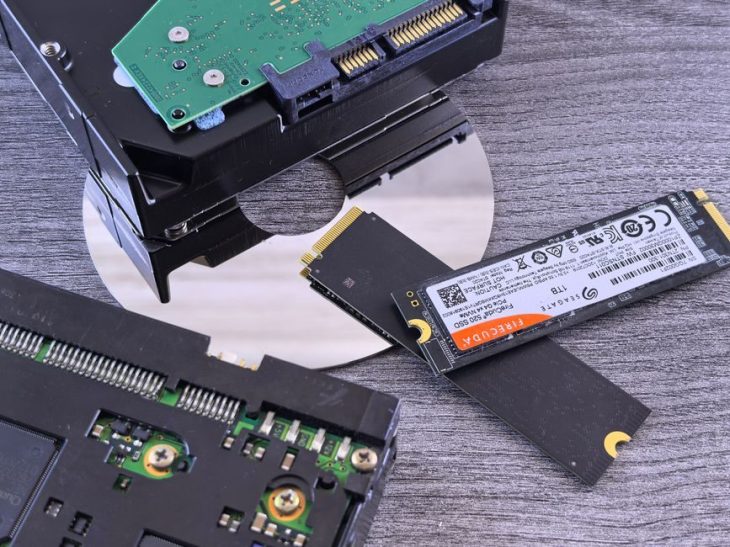
Windows’ built-in Disk Management can create and delete partitions, but it cannot do most of the jobs people actually need: move Windows to a new SSD without reinstalling, resize a partition that sits next to another, merge two drives into one, or convert a system disk from MBR to GPT for Windows 11. AOMEI Partition Assistant does all of that, and its free Standard edition covers a surprising amount on its own. Version 10.12.1 shipped on August 31, 2026. This review explains what the free and paid editions do, what they cost and whether you need to pay.
Reviews Universe is reader-supported. When you buy through links on our site, we may earn an affiliate commission at no extra cost to you.
The Short Version
Rating: 8.4/10
Best for: Anyone upgrading to an SSD, reorganizing drives or preparing a PC for Windows 11
Price: Standard free (home use); Professional $49.95/year or $69.95 lifetime for 2 PCs
Verdict: One of the best partition managers for Windows. The free edition handles everyday partitioning; Professional is worth it for OS migration, system-disk cloning and recovery tools, with a 90-day money-back guarantee.
What AOMEI Partition Assistant Does
Partition Assistant is a disk and partition manager for Windows 11, 10, 8.1, 8 and 7 from AOMEI, a company registered in Hong Kong that has made disk tools since 2009 and says it has over 80 million users. It shows every drive and partition in one window, and you queue up changes — resize this, move that, merge these — then apply them in one go, so nothing changes until you confirm.
Recent versions have broadened it into a general disk toolkit: version 10.12 redesigned data recovery with a deep scan, 10.11 added recognition of Mac and Linux file systems and a Hyper-V “Create VM” tool, and 10.9 added disk temperature monitoring and health alerts. A Disk Space Analyzer arrived in late 2025.
Free Standard vs Professional
| Standard (free) | Professional | |
|---|---|---|
| Resize, move, merge, create, format | Yes | Yes |
| Clone a data disk or partition | Yes | Yes |
| Migrate OS to SSD / clone system disk | No | Yes |
| Convert data disk MBR to GPT | Yes | Yes |
| Convert system disk MBR to GPT | No | Yes |
| Split partition, allocate free space, 1-click adjust | No | Yes |
| Move apps to another drive | No | Yes |
| Recover deleted partitions and files | No | Yes |
| Bootable rescue media, boot repair | No | Yes |
| Junk, large and duplicate file cleaners | Yes | Yes |
| Disk health, speed test, temperature | Yes | Yes |
| Wipe disk, shred files | Yes | Yes |
| Business use | No | Yes |
The free Standard edition is a genuine partition manager rather than a crippled demo: it resizes, moves, merges and formats partitions, clones data disks, converts data disks between MBR and GPT and file systems between NTFS and FAT32, and adds disk health checks and space-cleaning tools. It is licensed for home use only. The features most people buy Professional for are the system-level ones: migrating Windows to an SSD, cloning the system disk, converting the system disk to GPT, moving installed apps to free up the C: drive, recovering lost partitions and making a bootable rescue USB.
Moving Windows to an SSD
For most buyers, OS migration is the reason to upgrade. If your PC still boots from a hard drive, moving Windows, your programs and settings to an SSD is the single most effective speed upgrade you can make, and Partition Assistant Professional does it without reinstalling Windows. It copies only the system partitions to the new drive and aligns partitions for SSD performance, or you can clone the entire disk. Afterwards you switch the boot drive and carry on where you left off. A clone-related bug fix in the August 2026 release shows AOMEI is still actively maintaining the feature.
It is just as useful for the opposite problem: a C: drive that is full while D: has plenty of room. Professional can allocate free space from one partition to another, or move installed applications to a different drive, without deleting anything.
Pricing
| Professional Yearly | Professional Lifetime | Family Lifetime | |
|---|---|---|---|
| Price | $49.95/year | $69.95 once | $89.95 once |
| PCs | 2 | 2 | 5 |
| Renewal | Auto-renews, cancel anytime | Lifetime use and upgrades | Lifetime use and upgrades |
| Money-back guarantee | 90 days | 90 days | 90 days |
The lifetime license is the obvious choice: it costs only $20 more than a year’s subscription and never expires. AOMEI sometimes discounts it further on its download page. There are also Server, Unlimited and Technician editions for businesses and IT providers. Every purchase comes with lifetime email support and a 90-day unconditional money-back guarantee, which is unusually long. One limitation: the Professional demo only simulates operations, so you cannot test a real migration before paying — the refund window is your safety net. Check the edition comparison for business licensing.
Things to Know
Back up first. Any tool that changes partitions can lose data if the power fails mid-operation. AOMEI’s queue-then-apply design reduces mistakes, but keep a backup of anything important.
Windows only. There is no Mac version, and Partition Assistant works on Windows PCs and (in Server editions) Windows Server.
Watch the installer. AOMEI’s privacy policy acknowledges that third-party applications can be offered during installation, so read each screen and decline anything you do not want.
Reviews are positive but old. PCWorld rated an earlier version 4 out of 5 as a top-flight partition utility, and AOMEI has a 4.9 rating from more than 3,000 Trustpilot reviews. We found no recent major-outlet review of the current version.
Pros and Cons
Pros
- Free Standard edition is a full partition manager
- Migrates Windows to an SSD without reinstalling
- Converts system disks to GPT for Windows 11
- Moves apps and space between drives
- Partition and data recovery tools in Pro
- Lifetime license from $69.95 for 2 PCs
- 90-day money-back guarantee
Cons
- OS migration and system clone require Pro
- Pro demo can’t apply changes
- Free edition is for home use only
- Installer may offer third-party software
- Windows only
Frequently Asked Questions
Is AOMEI Partition Assistant free?
Yes, the Standard edition is free for home use. It can resize, move, merge, create and format partitions, clone data disks and convert data disks between MBR and GPT. Features such as migrating Windows to an SSD and converting the system disk require Professional.
How much does AOMEI Partition Assistant Professional cost?
Professional costs $49.95 per year or $69.95 for a lifetime license covering two PCs, and a Family lifetime license for five PCs is $89.95, with a 90-day money-back guarantee. Prices were checked on diskpart.com in October 2026.
Can AOMEI Partition Assistant move Windows to an SSD?
Yes, with the Professional edition. Its Migrate OS to SSD feature copies Windows, programs and settings to a new SSD without reinstalling, or you can clone the whole system disk.
Is AOMEI Partition Assistant safe?
It is a widely used, legitimate tool with a 4.9 Trustpilot rating from over 3,000 reviews. Changes are queued and only applied when you confirm. As with any partition software, back up important data first and read each installer screen.
Does AOMEI Partition Assistant work on Windows 11?
Yes. It supports Windows 11, 10, 8.1, 8 and 7, and the Professional edition can convert a system disk from MBR to GPT, which Windows 11 requires for UEFI boot.
What’s the difference between AOMEI Partition Assistant and AOMEI Backupper?
Partition Assistant manages disks and partitions: resizing, merging, converting and migrating Windows to a new drive. AOMEI Backupper is a separate backup program for creating and restoring system and file backups.
Final Verdict
AOMEI Partition Assistant is one of the best partition managers for Windows. Start with the free Standard edition for everyday resizing, merging and cleanup; it does more than Windows’ own tools. Upgrade to Professional when you need to move Windows to an SSD, fix a full C: drive or prepare a disk for Windows 11 — the $69.95 lifetime license covers two PCs and comes with a 90-day guarantee.
Rated 8.4 out of 10. For more ways to speed up a Windows PC, see our guide to the best PC optimizer software.